How to register a Control4 Controller in OvrC
Follow these instructions to register a Control4 controller in OvrC.
Note: The primary controller must be running OS 3.3.1 or later to register the device in OvrC. Read this article on how to use the Device Image Updater if the OS is lower than OS 3.3.1.
How to verify your Control4 account
Before registering a controller through OvrC, you must verify your account and connect it to your Control4 project. Follow the steps below to verify your OvrC account.
-
Click Account.
-
Click Link Control4 Partner Account.

-
Enter your my.control4.com credentials.
-
Click Verify Control4 Account.
How to register a Control4 controller
Once your dealer account is verified, follow the steps below to register a controller in OvrC.
-
Select a Customer, then the Devices tab.

-
If there's an OvrC Pro Hub on-site, click the Scan button to automatically claim the newly added controller.
Note: By default, OvrC scans the network hourly, so the device may already be claimed and listed.
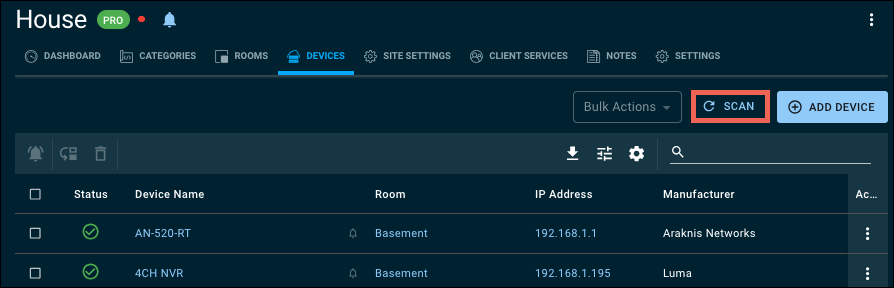
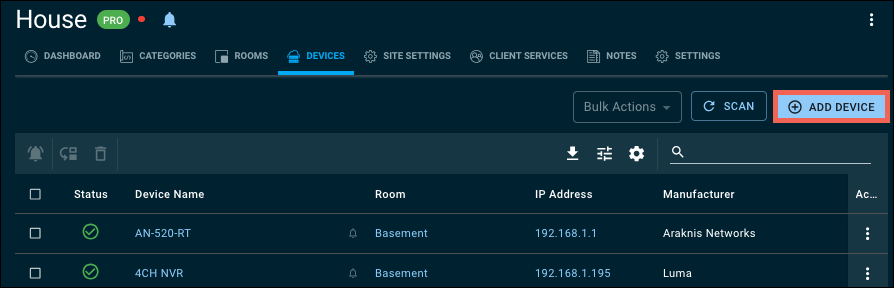
If there is not an OvrC Pro Hub on-site, click Add Device to manually enter the MAC address, then press the controller's ID button. Alternatively, you can enter the Serial number.
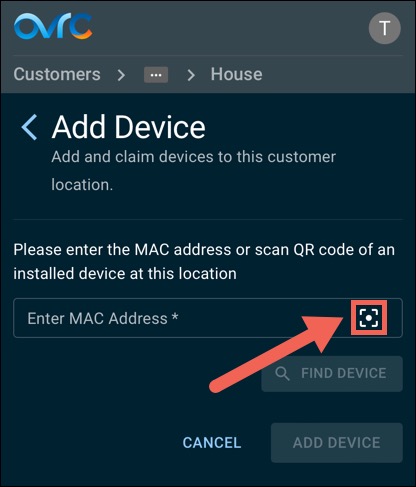
If you're using a mobile device, tap the Scan button to add the device using a QR code. You may need to allow OvrC to access your mobile device's camera.
-
Click Categories.
-
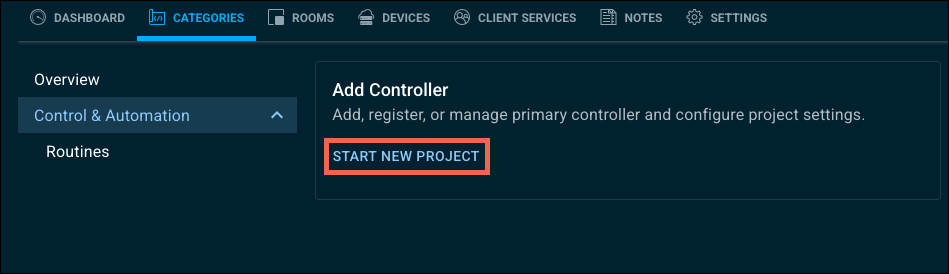
Click Start New Project.
-
Click Control4 Project.
-
Select a controller to act as the primary controller. There can be only one primary controller per OvrC Location.
-
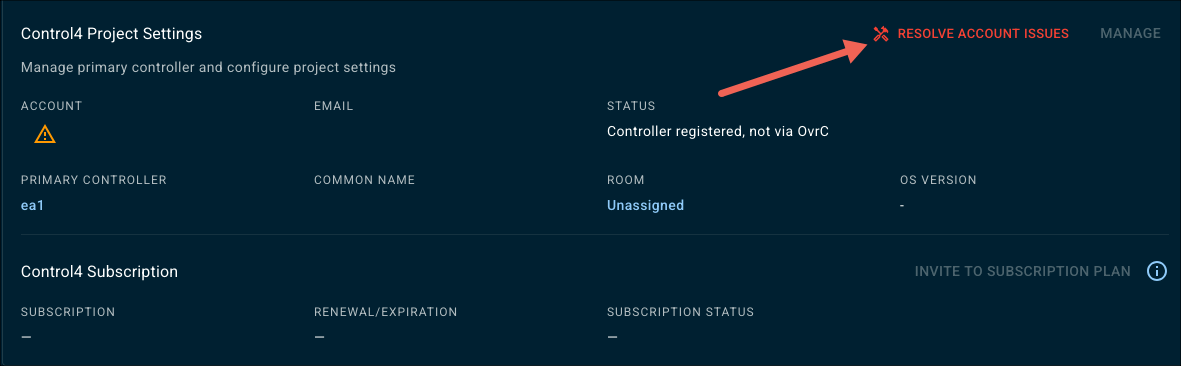
Click Set up and Register. If you see a red tool icon, there's an account issue. Click the icon to learn how to resolve the issue.
Test the system
Temporary credentials are made available on the Categories tab for testing with the Control4 mobile app prior to handing the system to the customer.
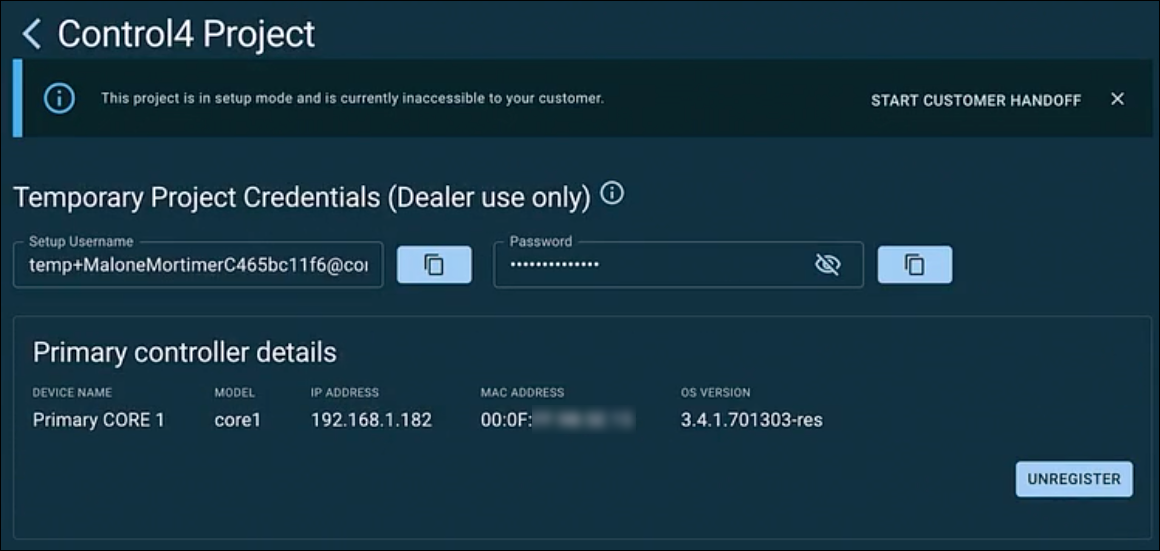
Note: OvrC refreshes temporary credentials every seven days. After that, you have to sign in to the Control4 mobile app with the newly generated credentials.
If this is for an X4 system, use Composer to upgrade the controller's OS. Click here to learn more about OS version upgrade compatibility and the Device Image Updater.
When ready, read How to hand-off a C4 Customer in OvrC in OvrC for hand-off instructions.